
YouTube is the world’s most popular video platform, but it doesn’t always let you download videos with subtitles directly.
Downloading a YouTube video with subtitle caption means saving the video file along with its subtitles (closed captions) so you can watch offline while still seeing the text on screen.
This is especially useful for learning languages, watching tutorials, or viewing content without internet access.
In this complete guide, I’ll show you exactly how to download YouTube video with subtitle caption using safe, easy, and beginner‑friendly methods.
Save this guide for later you’ll thank yourself when your Wi‑Fi disappears at the worst possible moment 💻✨
Types of YouTube Subtitles You Can Download
Before learning how to download YouTube video with subtitle caption, you should understand subtitle types:
Auto‑Generated Subtitles
- Created automatically by YouTube AI
- Available in many languages
Manual Subtitles
- Created by video creators
- Highly accurate
- Best quality option
Auto‑Translated Subtitles
- Machine translated
- Useful for international viewers
Method 1: Download YouTube Video with Subtitle Caption Using 4K Video Downloader
4K Video Downloader is one of the easiest and safest tools.
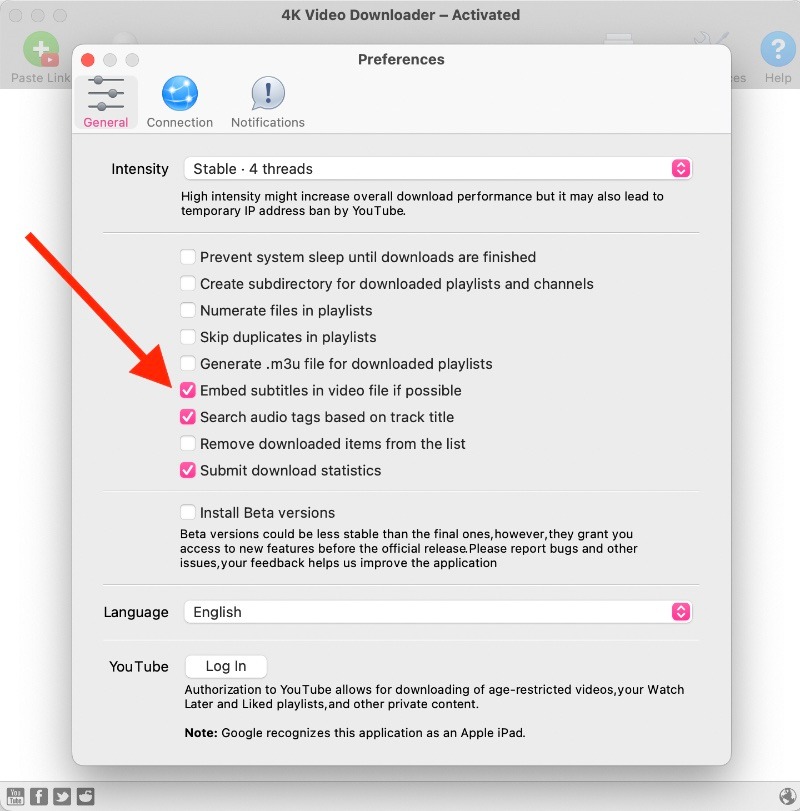
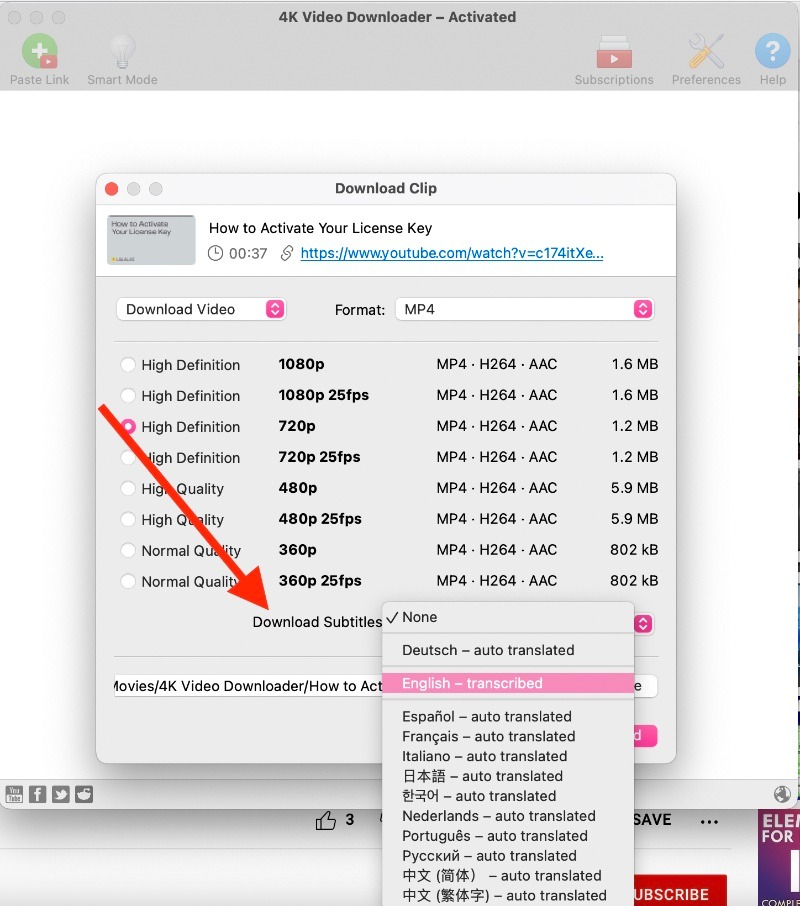
4
Steps:
- Download and install 4K Video Downloader
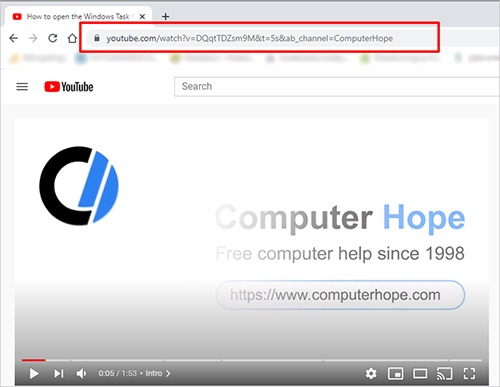
- Open YouTube and copy video URL
- Open 4K Video Downloader
- Click Paste Link
- Select:
- Video quality
- Subtitle language
- Choose Download
Done. Your video and subtitles will download together.
Why this works beautifully:
- Supports multiple subtitle languages
- Fast download speed
- Beginner friendly
Method 2: Download YouTube Video with Subtitle Caption Using VLC Media Player
VLC media player is free and powerful.
Steps:
- Copy YouTube video link
- Open VLC
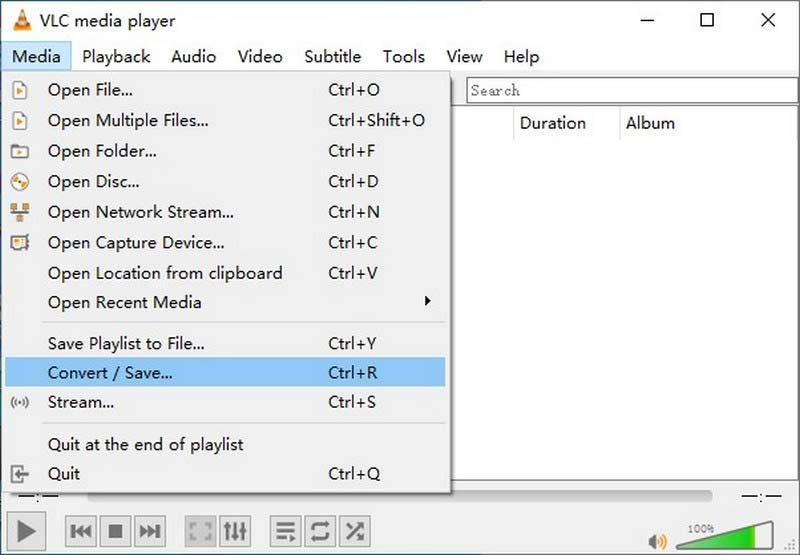
- Click Media → Open Network Stream
- Paste link
- Click Play
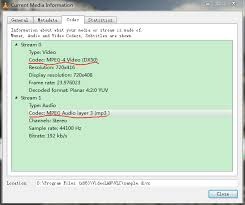
- Go to Tools → Codec Information
- Copy location link
- Paste into browser
- Save video
Download subtitles separately if needed.
Method 3: Download YouTube Video with Subtitle Caption Using Online Subtitle Downloader
This method requires no installation.
Steps:
- Copy YouTube video URL
- Open subtitle downloader website
- Paste link
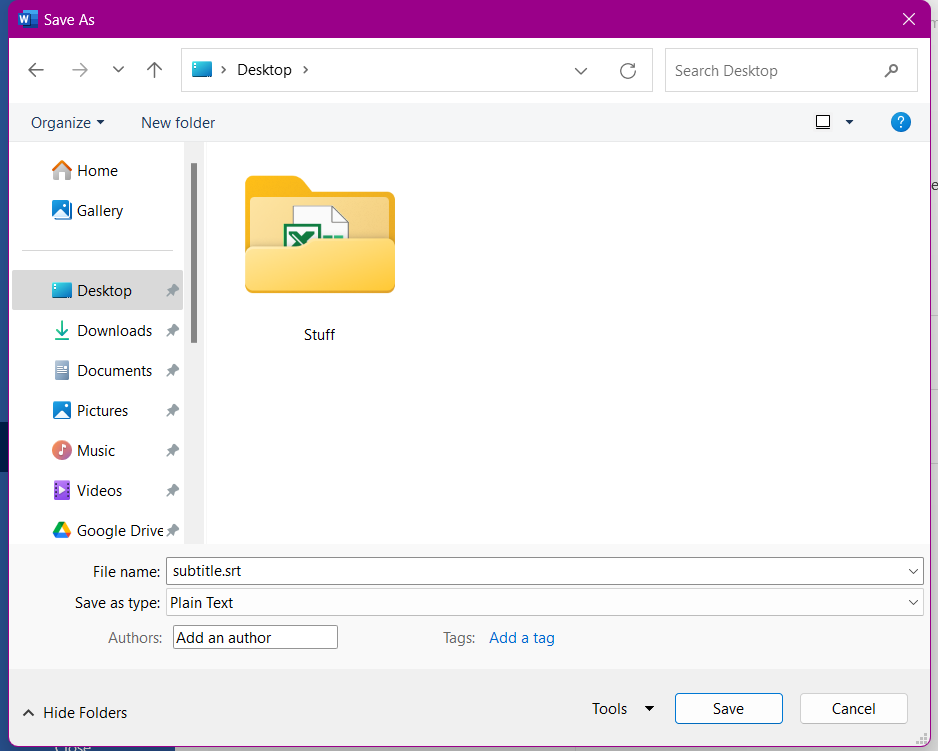
- Download subtitles (.SRT file)
Then combine video and subtitles.
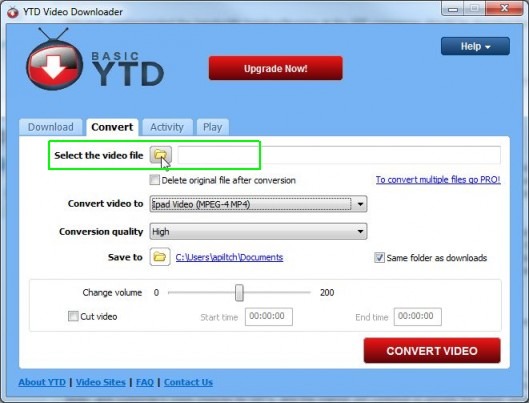
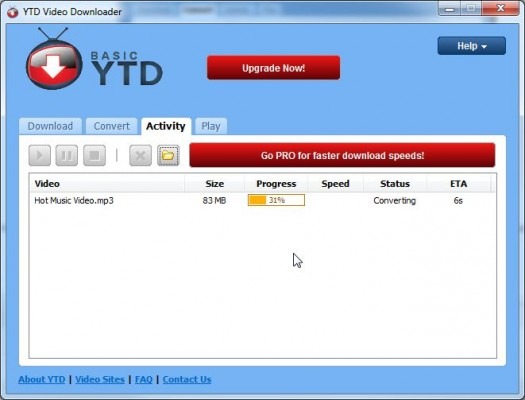
Method 4: Download YouTube Video with Subtitle Caption on PC (Windows)
Windows users have multiple options.
4
Best tools:
- 4K Video Downloader
- VLC Media Player
- ClipGrab
Steps:
- Install software
- Copy YouTube link
- Select subtitle option
- Download
Method 5: Download YouTube Video with Subtitle Caption on Mac
macOS supports similar tools.
Best tools:
- 4K Video Downloader
- VLC
- Downie
Steps are identical to Windows.
Method 6: Download YouTube Video with Subtitle Caption on Android
Android users can use apps and browsers.
4
Options:
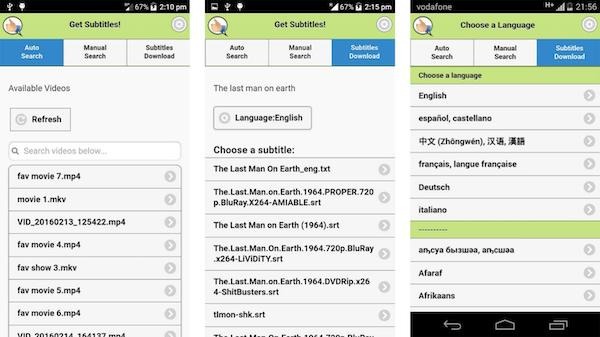
- Use subtitle downloader website
- Use downloader apps
Steps:
- Copy YouTube link
- Paste into downloader
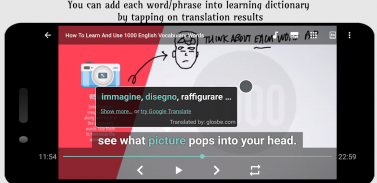
- Select subtitle language
- Download
Method 7: Download YouTube Video with Subtitle Caption on iPhone
iPhone has restrictions, but still possible.
Options:
- Online downloaders
- File management apps
Steps:
- Copy video link
- Use downloader website
- Save video and subtitles
Method 8: Download Only Subtitles from YouTube
Sometimes you only need subtitles.
Steps:
- Copy video link
- Use subtitle downloader
- Save .SRT file
Perfect for studying or translation.
Method 9: How to Download YouTube Auto‑Generated Subtitles
Steps:
- Copy YouTube link
- Open subtitle downloader
- Select auto subtitles
- Download
Method 10: How to Download YouTube Manual Subtitles
Manual subtitles offer best accuracy.
Steps:
- Copy video link
- Choose manual subtitle option
- Download
Method 11: Download YouTube Playlist with Subtitles
Some tools support playlist download.
Best tool: 4K Video Downloader
Steps:
- Copy playlist link
- Paste link
- Enable subtitles
- Download
Method 12: Download YouTube Video with Embedded Subtitles
Embedded subtitles appear permanently on video.
Steps:
- Select embed subtitles option
- Download video
Method 13: Download YouTube Subtitles in Multiple Languages
Supports:
- English
- Urdu
- Spanish
- Hindi
- Arabic
Steps:
- Select multiple subtitle languages
- Download
Method 14: Best Subtitle File Formats
Most common:
- SRT (best)
- TXT
- VTT
SRT is recommended.
Method 15: Combine Subtitle File with Video
Steps:
- Put video and subtitle in same folder
- Same filename
- Play video
Subtitles appear automatically.
Method 16: Benefits of Downloading Videos with Subtitles
Emotional benefits:
- Learn faster
- Understand deeper
- Feel connected
Practical benefits:
- Offline viewing
- Language learning
Method 17: Is It Legal to Download YouTube Videos with Subtitle Caption?
Important note:
Downloading videos without permission may violate YouTube policy.
Safe cases:
- Personal use
- Educational use
- Creator permission
Method 18: Best Software to Download YouTube Video with Subtitle Caption
Top tools:
- 4K Video Downloader
- VLC Media Player
- ClipGrab
- Downie
Method 19: Common Problems and Fixes
Problem: Subtitles not showing
Fix: Rename subtitle file same as video
Problem: Subtitle out of sync
Fix: Use media player sync option
Method 20: Best Video Players for Subtitle Playback
Best players:
- VLC Media Player
- MX Player
- KMPlayer
Method 21: How to Automatically Load Subtitles
Steps:
- Same filename
- Same folder
- Open video
Done.
Method 22: Tips for Best Subtitle Experience
Best practices:
- Use SRT format
- Use VLC player
- Download manual subtitles
Method 23: Mistakes to Avoid
Avoid:
- Unsafe websites
- Fake download tools
- Wrong subtitle format
Stay safe.
Method 24: SEO, Learning, and Emotional Benefits of Subtitle Content
Subtitles increase:
- Understanding
- Engagement
- Retention
They create emotional clarity.
FAQ: How to Download YouTube Video with Subtitle Caption
1. Can I download YouTube video with subtitles?
Yes, using tools like 4K Video Downloader.
2. What format are subtitles?
Usually SRT format.
3. Can I download auto subtitles?
Yes.
4. Can I download subtitles only?
Yes.
5. Best subtitle downloader?
4K Video Downloader and VLC.
6. Are subtitles accurate?
Manual subtitles are accurate.
7. Can I download on phone?
Yes, Android and iPhone supported.
8. Are subtitle downloads free?
Most tools are free.
9. Can I download playlists with subtitles?
Yes, using supported tools.
10. Can I embed subtitles in video?
Yes.
Emotional Conclusion: Why Knowing How to Download YouTube Video with Subtitle Caption Changes Everything
There’s something deeply comforting about having your favorite videos saved with subtitles gently guiding every word, every meaning, every emotion.
Whether you’re learning a new skill, understanding a different language, or simply saving something meaningful, knowing how to download YouTube video with subtitle caption gives you freedom.
Freedom to learn offline.
Freedom to understand clearly.
Freedom to keep knowledge forever.
You’re no longer dependent on internet speed, buffering, or uncertainty.
Everything you need is right there, safe, accessible, and beautifully complete.
Save this guide now. Your future self will absolutely love you for it 💙
