
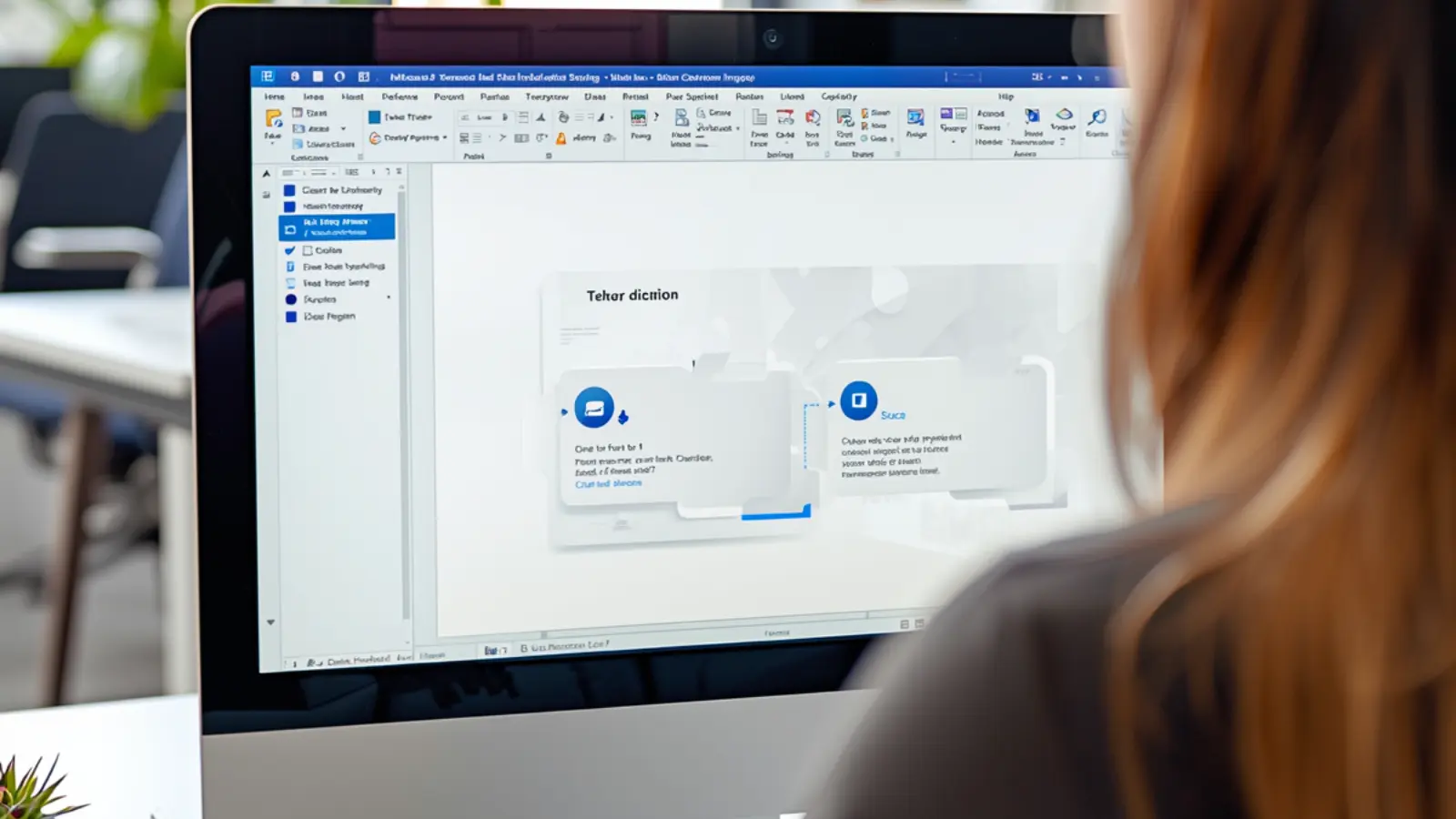
Adding captions to images in PowerPoint is an essential skill for making your slides more informative, professional, and accessible.
A caption not only explains the visual but also improves audience understanding and engagement.
In this guide, you’ll learn how to add, format, and customize captions in PowerPoint, explore advanced tips for multiple images, and avoid common mistakes.
Featured-Snippet Definition:
A caption in PowerPoint is a text description added directly below, above, or beside an image, providing context, attribution, or explanation.
Captions enhance clarity, improve accessibility, and make your presentation more engaging.
This guide covers everything from beginner steps to advanced caption formatting, ensuring your slides look polished and professional.
Adding a Caption Using Text Box Method ✏️

-
Insert your image onto a slide.
-
Go to the Insert tab → Text Box.
-
Click below or above the image to place the text box.
-
Type your caption text.
-
Format using font size, style, and color.
-
Align text to match image placement.
-
Use center alignment for a balanced look.
-
Adjust text box size to prevent overlap.
-
Group text box and image for easier movement.
-
Apply WordArt for stylized captions.
-
Use consistent font across slides.
-
Add bold or italics for emphasis.
-
Include icons or emojis for a casual presentation.
-
Save the slide as a template for future captions.
-
Review on Slide Show mode to check appearance.
Using PowerPoint’s Alt Text for Captions 📝
-
Right-click the image Edit Alt Text.
-
Enter descriptive text that explains the image.
-
Helps screen readers for accessibility.
-
Add context even if the caption is visible.
-
Keep descriptions concise and accurate.
-
Alt text improves compliance with accessibility standards.
-
Useful for online presentations or PDFs.
-
Combine with visible captions for clarity.
-
Ensure keywords are naturally included if for educational slides.
-
Avoid redundancy—alt text complements, not duplicates visible captions.
-
Use action verbs in descriptions.
-
Describe key objects, people, or data points.
-
For charts, include axis details and data trends.
-
Alt text is automatically read in PowerPoint Online.
-
Alt text + visible captions = professional accessibility setup.
Adding Captions with Shapes 🎨

-
Insert rectangle, rounded rectangle, or callout shapes under the image.
-
Right-click → Format Shape to adjust color and outline.
-
Type caption text inside the shape.
-
Use semi-transparent fills for image overlay.
-
Align shapes with the image’s edges.
-
Shapes provide visual separation from the slide background.
-
Adjust padding for readability.
-
Group shape and image for easier positioning.
-
Apply shadow or glow effects for emphasis.
-
Use consistent shape styles across slides.
-
Shapes can act as clickable hyperlinks.
-
Perfect for highlighting sections in a large infographic.
-
Shapes help maintain visual hierarchy.
-
Add subtle gradients or borders for style.
-
Use multiple shapes for multi-line captions.
Formatting Captions for Readability 🖊️
-
Choose legible font (Arial, Calibri, or Verdana).
-
Maintain font size proportional to image.
-
Contrast text color with the background.
-
Use bold for emphasis.
-
Use italics for quotes or citations.
-
Keep line spacing comfortable.
-
Avoid long captions—keep them concise and informative.
-
Limit characters per line for clean slide layout.
-
Use bullet points for multi-part captions.
-
Align captions center, left, or justified based on design.
-
Include icons or small symbols for context.
-
Avoid caps lock unless for titles.
-
Maintain consistent style across slides.
-
Preview in Slide Show mode for clarity.
-
Use animation subtly if needed to reveal captions.
Caption Placement Best Practices 📍
-
Place captions directly below images for traditional look.
-
Above images for quotes or emphasis.
-
Overlay text on top of the image using semi-transparent shapes.
-
Avoid overlapping critical parts of images.
-
Maintain margin from edges for readability.
-
Align captions with other slide elements.
-
Use consistent placement across slides.
-
For infographics, place captions near related visuals.
-
Keep captions visible on projector screens.
-
Consider audience reading distance.
-
Use slide master for recurring caption positions.
-
Center-align for symmetry.
-
Left-align for text-heavy slides.
-
Right-align for stylistic variation.
-
Check accessibility for color-blind friendly placement.
Multi-Image Slides and Captions 🖼️
-
Create a text box under each image.
-
Maintain uniform font size and color across images.
-
Consider caption numbering for reference.
-
Group each image with its caption for easier rearrangement.
-
Use shapes behind captions to improve legibility.
-
Avoid clutter by leaving white space between images.
-
Use consistent margin and spacing.
-
Apply Slide Master layouts for repeated multi-image slides.
-
Include short descriptive captions for each photo.
-
For graphs, include data-specific captions.
-
Align captions for visual harmony.
-
Avoid captions that interfere with other images.
-
Consider using columns for compact arrangement.
-
Add subtle icons to indicate series.
-
Group and lock elements to avoid accidental movement.
Using PowerPoint SmartArt for Image Captions ✨
-
Insert SmartArt → Picture layout.
-
Automatically pairs images with text placeholders.
-
Choose layout depending on number of images.
-
Edit caption text in SmartArt placeholders.
-
SmartArt provides consistent formatting.
-
Shapes can be customized for style.
-
Adjust size and alignment for slide design.
-
Perfect for comparison slides or steps.
-
Use for team photos, project visuals, or process charts.
-
Apply color themes for brand consistency.
-
SmartArt makes batch caption formatting easy.
-
Captions are automatically resizable with the shape.
-
Add icons or symbols for visual context.
-
Animations can reveal captions with SmartArt effects.
-
Ensure text remains readable on projector or print.
Captioning Charts, Graphs, and Infographics 📊
-
Place captions directly under charts.
-
Include data source if applicable.
-
Use concise explanations for trends.
-
Highlight key insights in bold or color.
-
For pie charts, explain slices clearly.
-
Add small footnotes for complex data.
-
Use shapes to call out specific points.
-
Keep captions short to avoid overcrowding.
-
Maintain font consistency with other slides.
-
Consider using legends + captions for clarity.
-
Position captions for easy reading without scrolling.
-
Color code captions for better visual hierarchy.
-
Align captions with chart titles.
-
Include annotations for multi-step charts.
-
Captions reinforce audience retention of key data.
Accessibility Tips for Captions ♿
-
Always use Alt Text for images.
-
Keep captions simple and descriptive.
-
Avoid decorative captions with only emojis.
-
Maintain high contrast between text and background.
-
Use large enough fonts for readability.
-
Ensure captions don’t overlap images.
-
Avoid excessive text that hinders comprehension.
-
Preview in Slide Show mode for accessibility.
-
Group images and captions logically.
-
Consistent style helps screen readers interpret slides.
-
Label multi-image slides clearly.
-
Use clear and concise language.
-
Test slides for color blindness accessibility.
-
Add captions to graphs with key takeaway points.
-
Accessibility captions improve audience inclusivity.
Common Mistakes to Avoid ❌
-
Overcrowding captions with too much text.
-
Using tiny fonts that are unreadable.
-
Poor color contrast.
-
Placing captions in random positions.
-
Ignoring Alt Text for accessibility.
-
Using inconsistent font styles across slides.
-
Captions that repeat the slide title unnecessarily.
-
Forgetting to group caption with image.
-
Overusing decorative shapes or emojis.
-
Ignoring screen readability from a distance.
-
Using captions as a crutch instead of clear visuals.
-
Neglecting multi-image slide spacing.
-
Adding captions only at the last minute.
-
Not previewing slide in Slide Show mode.
-
Ignoring branding or style consistency.
Advanced Captioning Tips for Professionals 🌟
-
Use Slide Master for consistent caption placement.
-
Combine text boxes and shapes for professional styling.
-
Apply animations to reveal captions gradually.
-
Use semi-transparent overlays for readability.
-
Include icons, arrows, or pointers for focus.
-
Apply gradients or shadows subtly.
-
Keep brand colors consistent in captions.
-
Batch process multiple slides with the same caption style.
-
Maintain text hierarchy for multiple captions.
-
For infographics, integrate SmartArt + captions.
-
Use keyboard shortcuts to copy-paste captions efficiently.
-
Test captions on different devices for visibility.
-
Keep accessibility in mind for all audience types.
-
Review captions in presenter view.
-
Always proofread before final presentation.
Caption Writing Framework for PowerPoint ✍️
-
Who: Identify the audience.
-
What: State what the image is about.
-
Why: Explain the relevance to the slide.
-
How: Give instructions or context if needed.
-
Keep it short: One or two lines maximum.
-
Use action verbs to make captions engaging.
-
Align captions with visual focus points.
-
Use numbers or bullets if multiple captions.
-
Include keywords for topic emphasis.
-
Maintain brand tone and consistency.
-
Use plain language for clarity.
-
Emojis can enhance comprehension subtly.
-
Review for redundancy or repetition.
-
Test readability on screen and print.
-
Refine over multiple slide versions.
Engagement Strategies for Slide Captions 📈
-
Use questions in captions for audience thinking.
-
Highlight key takeaways.
-
Include calls to action: “Remember this point!”
-
Use quotes or stats in captions.
-
Keep text concise for visual emphasis.
-
Include small icons or arrows for focus.
-
Number slides and captions for reference ease.
-
Bold key terms to catch attention.
-
Use consistent format across presentations.
-
Include mini tips or hints in captions.
-
Layer captions with animations for dynamic effect.
-
Create template captions for recurring themes.
-
Encourage audience reflection with captions.
-
Test different caption styles for retention.
-
Keep captions friendly and conversational.
Seasonal and Occasion-Based Captions 🎉
-
Holiday images → “Celebrating joy this season 🎄✨”
-
Event photos → “Highlights from our anniversary bash 🥂❤️”
-
Graduation slides → “Caps off to the achievers 🎓🌟”
-
Wedding photos → “Forever starts today 💍💖”
-
Product launch → “Unveiling the latest innovation 🚀✨”
-
Birthday slides → “Cheers to another amazing year 🎉🎂”
-
Summer trips → “Sun, sand, and smiles 🌞🏖️”
-
Winter events → “Cozy moments in the snow ❄️☕”
-
Conference photos → “Insights shared, connections made 🤝💡”
-
Team events → “Together we achieve more 💪🌟”
-
Cultural festivals → “Colors, music, and joy 🌸🎶”
-
Charity events → “Making a difference together ❤️✨”
-
Seasonal campaigns → “Spring into action 🌼💛”
-
Engagement or wedding slides → “Two hearts, one journey 💖💍”
-
Anniversary slides → “A year of love, laughter, and memories 🥂💫”
Platform-Specific Tips for Online Sharing 🌐
-
When sharing online, ensure captions are concise.
-
Use keywords for SEO if posting slides online.
-
Maintain contrast for mobile viewing.
-
Avoid small fonts that disappear on smaller screens.
-
Test slides on different devices.
-
Add hyperlinks in captions if relevant.
-
Keep images and captions responsive.
-
Avoid over-decorating for web formats.
-
Use captions to reinforce branding.
-
Include alt text for screen reader compatibility.
-
Simplify text for social media sharing.
-
Use short bullets for faster scanning.
-
Ensure captions align with thumbnail previews.
-
Highlight critical points in bold.
-
Online sharing captions should encourage engagement.
Mistakes to Avoid in Captioning Slides ❌
-
Overcrowding text under images.
-
Using tiny or unreadable fonts.
-
Low-contrast text vs background.
-
Misaligned captions causing messy slides.
-
Ignoring accessibility (no alt text).
-
Overuse of effects that distract.
-
Inconsistent font and color styles.
-
Captions repeating the slide title unnecessarily.
-
Not previewing in Slide Show mode.
-
Poor grammar or typos.
-
Using decorative emojis excessively.
-
Ignoring spacing on multi-image slides.
-
Failing to group captions with images.
-
Placing captions over critical image areas.
-
Copy-pasting without adjusting for context.
PowerPoint Caption FAQ ❓
Q1: Can I add captions to multiple images at once?
A1: Yes, by using SmartArt or grouping text boxes with images.
Q2: Do captions improve accessibility?
A2: Absolutely! Combine visible captions with alt text for screen readers.
Q3: Can I animate captions?
A3: Yes, use subtle entrance animations to reveal captions dynamically.
Q4: Are shapes better than text boxes for captions?
A4: Shapes enhance visibility and can be styled, but text boxes are simpler.
Q5: How do I maintain consistent caption style?
A5: Use Slide Master or copy formatting across slides.
Q6: Should I use emojis in professional slides?
A6: Use sparingly for visual emphasis without appearing informal.
Q7: Can captions be exported to PDF?
A7: Yes, all captions appear in exported slides.
Q8: Where should captions be placed?
A8: Typically below images, but above or overlay can work depending on context.
Q9: Do captions affect slide printing?
A9: Ensure text contrasts with the background to remain readable.
Q10: How long should a caption be?
A10: Keep it concise—ideally one to two lines.
Conclusion 💡
Adding captions to images in PowerPoint is more than decorative text it’s about clarity, accessibility, storytelling, and engagement.
By using text boxes, shapes, SmartArt, and alt text strategically, you can make your slides professional, polished, and audience-friendly.
Always prioritize readability, consistency, and context.
Whether it’s a corporate presentation, school project, or online slide deck, effective captions ensure your message resonates and leaves a lasting impression. 🖊️✨
Start captioning your images today, and watch your slides become more informative, accessible, and visually stunning! 💛
